

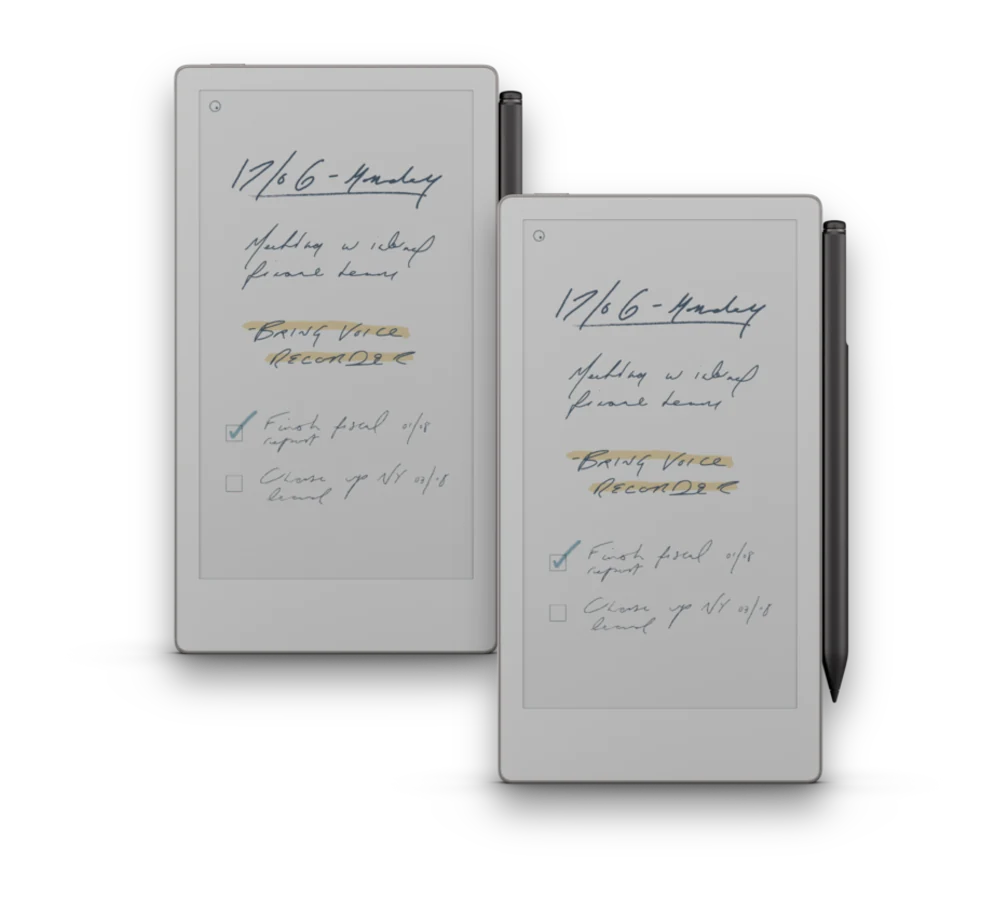
Sooner or later a page runs out of room, or you want a second go at a layout you have already filled in. The reMarkable can copy any page in a document, including pages inside an imported PDF, and drop the copy in right behind the original. It takes about five seconds once you know where the option lives.
Why duplicate a page
Duplicating is the answer whenever the page itself is worth keeping but the writing on it is not finished, or is about to change:
- A section ran long. A meeting-notes or project page fills up and you want a second sheet with the same layout, in the same place in the notebook.
- You want a snapshot before you redraw. Copy the page, then rework the copy. If the new version does not land, the original is still sitting there.
- You filled in a layout you want to reuse. A page you have already set up with headings, boxes, or a hand-drawn grid becomes a starting point instead of something you rebuild by hand.
- You want a working draft. Keep the clean copy for the record and scribble freely on the other one.
How to duplicate a page
The option is not on the main toolbar. It lives in the page overview, which you reach from the document's overflow menu:
- Open the document and tap the three-dot menu in the top-right corner.
- Choose Page overview to see every page as a thumbnail.
- Tap and hold the page you want to copy until it highlights.
- A toolbar appears along the top with Duplicate, Move, and Delete. Tap Duplicate.
- The copy appears immediately after the original. Tap it to open it, or tap the original to carry on where you were.
Step by step, that is what happens in the recording above:
- 0:02 Open the three-dot menu and choose Page overview.
- 0:07 Tap and hold the page thumbnail until it highlights.
- 0:09 Tap Duplicate in the toolbar that appears.
- 0:11 The copy lands right after the original, as page 113 of 126.
- 0:19 An "A" is added to the original page.
- 0:26 A "B" is added to the copy. Neither change touches the other page.
- 0:36 Tapping the notebook's index still jumps to the original, not the copy.
What the copy actually is
The duplicate is a full, independent page. It carries the printed page artwork and anything you had already written on it, and from that moment on the two pages go their separate ways. In the recording, writing an "A" on the original and a "B" on the copy leaves two pages that look identical apart from those marks; neither edit bleeds into the other.
The copy is inserted directly behind the original rather than being appended to the end of the document, so the page order you already had is preserved and everything after the original shifts along by one.
Changed your mind? A duplicate is removed the same way it was made. Open the page overview, tap and hold the copy, and tap Delete in the same toolbar.
The catch in a hyperlinked PDF notebook
This is the part worth understanding before you start duplicating pages in a hyperlinked PDF notebook, because it surprises people.
The reMarkable is copying the page, not rebuilding the notebook. The links printed inside the PDF - the index tabs down the side, the page-number lists, the jump-back buttons - were baked in when the file was made, and they still point at the original page positions. So after you duplicate a page:
- The copy carries the original's printed page number. Two pages now show the same number in the header, because that number is part of the page artwork.
- The index does not know the copy exists. Tapping that page number in the notebook's index jumps to the original every time, as it does at 0:36 in the video above.
- You reach the copy by swiping or through the page overview, not through the notebook's own navigation.
None of that breaks anything. The original navigation keeps working exactly as it did, and the copy sits one swipe away. It just means a duplicated page is best thought of as an overflow sheet attached to the page in front of it, rather than as a new numbered page in the notebook.
A practical habit: write a short marker on the copy, such as the page number followed by "a", so that when you land on the original later you know there is a continuation sheet behind it.
Duplicate or add a new page?
The overflow menu also has Add note page, which is a different tool for a different job:
| Duplicate | Add note page | |
|---|---|---|
| You get | A copy of the page, artwork and handwriting included | A fresh page using a reMarkable template |
| Best for | Reusing a layout you have set up, or keeping a version before you change it | Plain extra space where the layout does not matter |
| Existing notes | Come with it, and can then be erased or edited independently | Blank |
| Printed page design | Matches the rest of the notebook | Uses a built-in reMarkable template, so it will look different |
If you are working in a designed notebook, duplicating keeps the look consistent. Adding a note page is quicker when you just need somewhere to think.
The video was recorded on a reMarkable Paper Pro Move. Menu wording and icon placement can shift slightly between software versions, but the route is the same: overflow menu, page overview, tap and hold, Duplicate.
Notebooks built to be written in
Our PDF notebooks come with hyperlinked indexes, tabbed navigation, and page designs made for e-ink, so the page you duplicate is one worth reusing. Free samples are available for every device size.